Appearance
Platform Data Storage
The platform provides a JSON storage system for each application, allowing you to read and write whole JSON files. The storage is isolated per application. Each app can only access its own data.
The JSON storage provides four fundamental endpoints:
- canRead - Checks if the caller has read permission for a JSON file
- canWrite - Checks if the caller has write permission for a JSON file
- read - Returns the entire JSON object
- write - Replaces the entire JSON object with the provided data
See the full API documentation for details.
Configuration (Platform UI)
Each application has a "JSON Storage" tab on the platform. Use the "Add" button to create new JSON documents. Click on a document to view its content and settings:
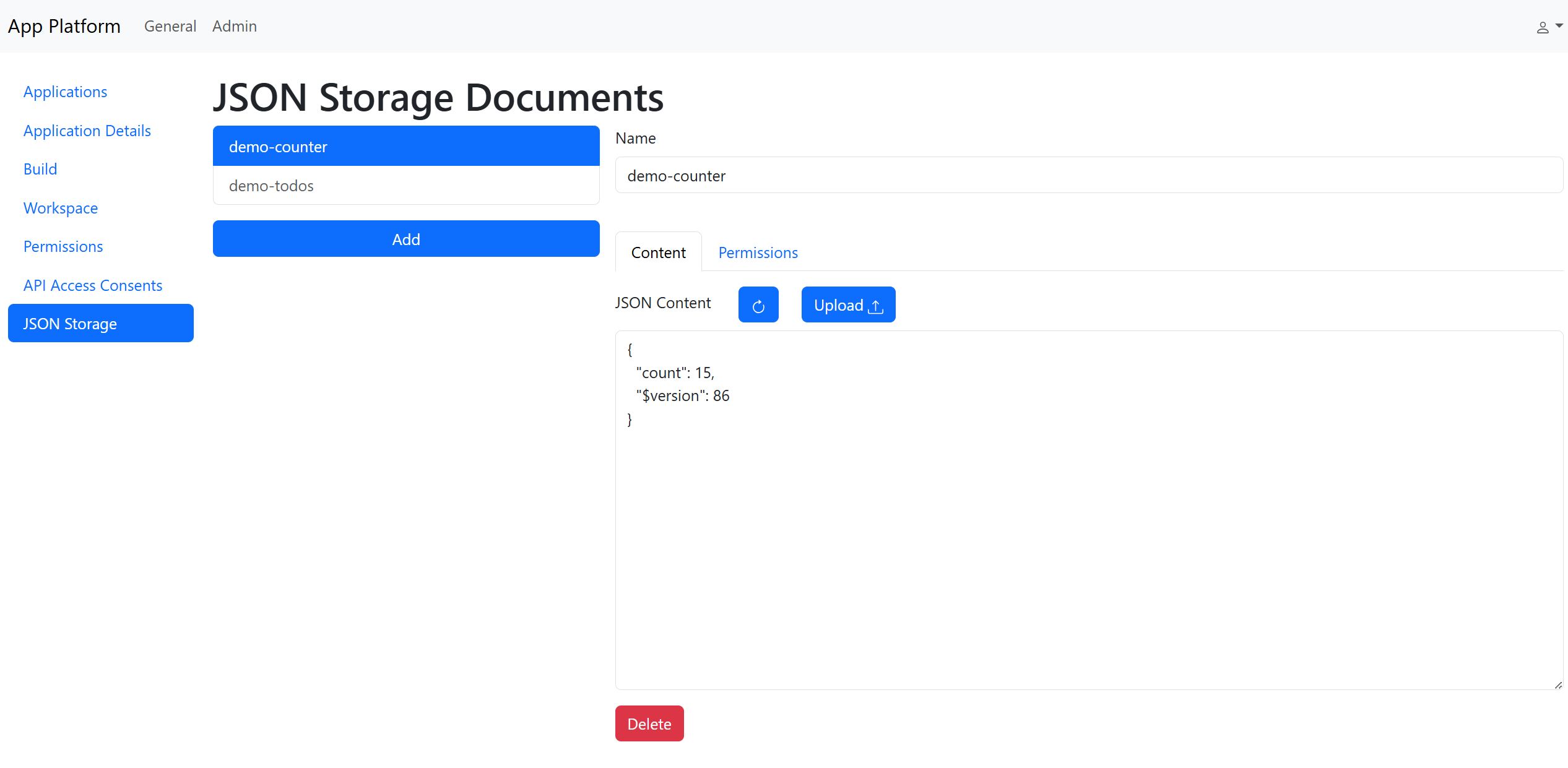
- Name: The identifier used to access this document through the platform gateway endpoints
- Delete Button: Permanently deletes this JSON document from storage
Content Tab
The Content tab displays the current JSON object. You can:
- Click the ⟳ button to refresh and see any changes
- Edit the JSON Content in the text field
- Click Upload to save your changes (only valid JSON is accepted)
Permissions Tab
The Permissions tab allows you to configure the OCC version field and set read/write permissions for frontend and backend access.
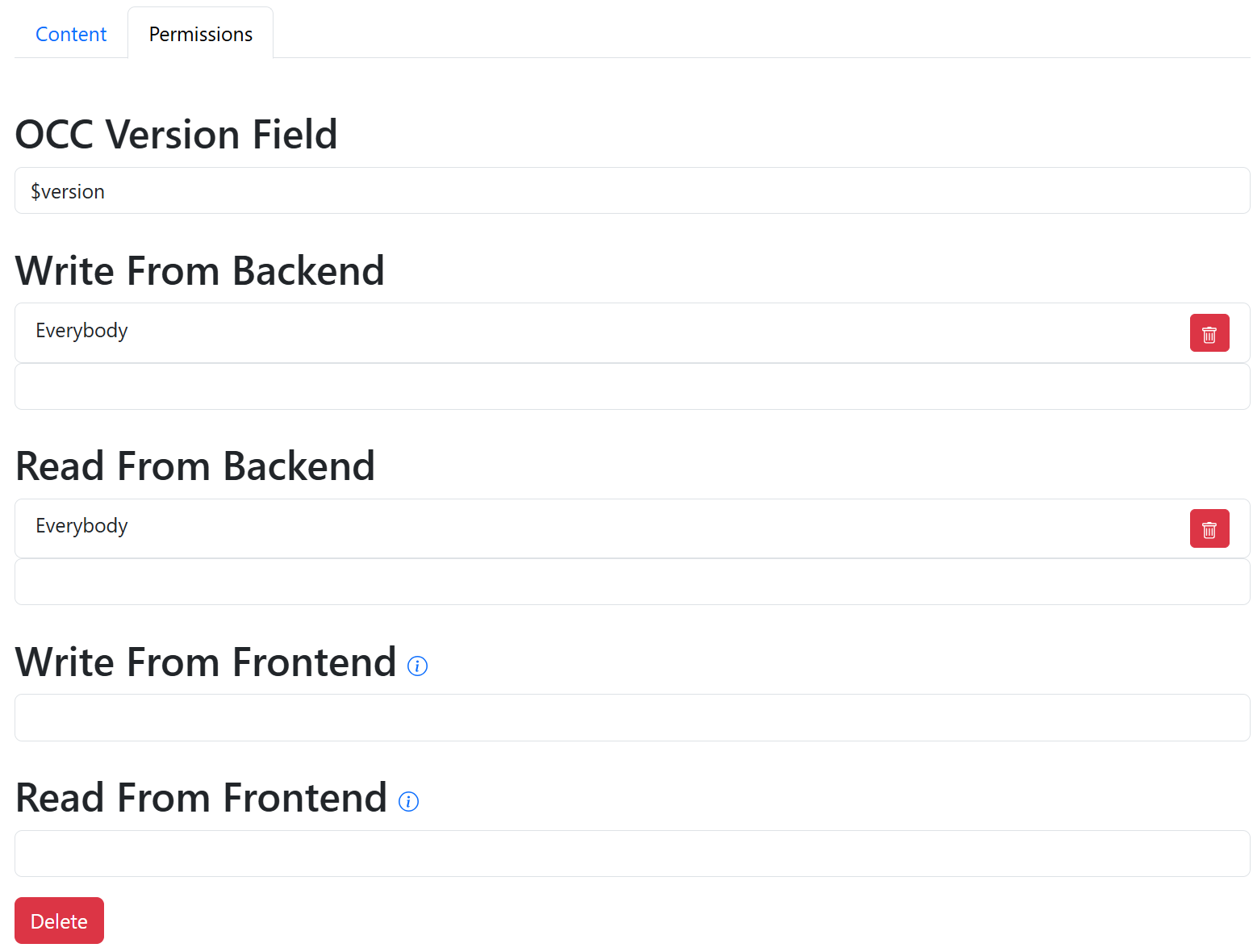
- OCC Version Field: To prevent lost writes due to concurrent updates, the storage system automatically adds an OCC (Optimistic Concurrency Control) version field to each JSON file. By default, this field uses the key "$version", but you can change it here (make sure the key won't conflict with your data structure).
Notes:
- Leaving this field empty disables OCC versioning.
- The version number in the JSON file auto-increments on every write operation.
- Write requests with mismatched version numbers are rejected with a 409 HTTP error.
- Write From Backend: Defines who can write to this JSON document from the backend (applies to requests carrying the Backend Token)
- Read From Backend: Defines who can read this JSON document from the backend (applies to requests carrying the Backend Token)
- Write From Frontend: Defines who can write to this JSON document from the frontend (applies to requests carrying the Frontend Token)
- Read From Frontend: Defines who can read this JSON document from the frontend (applies to requests carrying the Frontend Token)
Important!: Only grant Frontend read/write access for files that you don't care if a user reads/changes all of it (Don't rely on the frontend-code to limit the users access to sections of the JSON structure)
Accessing Storage from Frontend
The JSON storage can be accessed from the frontend via the platform gateway's REST API (see API documentation).
Best Practice: Only access JSON documents from the frontend when all users should be able to read or modify the entire file. For user-specific data (such as individual user settings), use backend-mediated access instead. (see section Accessing storage from Backend)
The lib folder of the React template contains a WithPersistedState component and useJsonStorage hook, that already manage accessing the JSON storage (see Using WithPersistedState section for a usage example).
Using WithPersistedState
The WithPersistedState component from src/lib/jsonStorage uses the render props pattern ("function as a child"). It expects a child function with the signature (state, save) => React.ReactNode. The state parameter contains the current data from JSON storage, while save is a function used to update and persist changes back to storage.
The following example implements a simple counter with increment and refetch buttons, whose state is persisted using WithPersistedState:
tsx
const [refetch, setRefetch] = useState({});
return (
  <>
    <Button onClick={() => setRefetch({})}>Refetch</Button>

    <WithPersistedState<{ count: number }>
      storeName="demo-counter"
      options={{
        defaultValue: { count: 0 },
        deps: [refetch], // refetch when refetch-signal changes
      }}
    >
      {(state, save) => (
        <>
          <h2>{state.count}</h2>
          <Button onClick={() => save((s) => s.count++)}>Increment</Button>
        </>
      )}
    </WithPersistedState>
  </>
);
The increment button calls the save() function exposed via the render props to update the counter value. (For more information on the save function, see section Updating Persisted State).
The refetch button updates the refetch useState, which is passed to WithPersistedState as a dependency. (For more information on refetching data persisted by WithPersistedState, see section Refetching Persisted State)
Refetching Persisted State
There are two ways provided by WithPersistedState to refetch the persisted data:
- Dependencies: Pass dependencies via the optional
options.depsproperty. The state will automatically refetch when one of the dependencies changes. (see code example here) - Polling: Via the optional
options.pollproperty, a poll in ms can be set.
Note: In case you want to refetch all data globally, use the globalReload() function from src/lib/globalReload.ts. Be aware this reloads everything fetched via useFetch, not just data managed by WithPersistedState and useJsonStorage.
Updating Persisted State
The save function and state variable exposed via the render props can be used to update the persisted state in three ways:
- Mutator Function (Recommended): Pass a function that describes the state changes.
typescript
await save((state) => {
  state.count += 1;
});Advantage: Save calls are automatically queued, and OCC version mismatches are resolved by refetching and retrying.
- Partial State Objects: Pass a partial object to perform a shallow merge.
typescript
await save({ count: 5 });- Direct State Manipulation: Modify the state variable directly, then call
save()without parameters.
typescript
state.count = 10;
await save();Note: For options 2 and 3, WithPersistedState (via useJsonStorage) does not automatically queue save calls or resolve OCC version mismatches.
Error Handling
By default WithPersistedState catches all errors and notifies users via toast notifications. If options.shouldThrow is set to true, the component will throw LocalToStorageMismatchException (OCC version conflict) or SaveInProgressException (concurrent save attempt) when saving. These exceptions primarily occur with partial state objects or direct state manipulation; mutator functions handle these cases automatically through queueing and retry logic. When multiple queued mutators fail, WithPersistedState throws an AggregateError containing the individual errors.
Accessing storage from Backend
You should access the JSON storage from the backend, when you directly use the data in the backend or when you want to have more control over what data the user/frontend can access (e.g. so the frontend can only see the saved settings for its user).
Using JsonStorageService:
The JsonStorageService provides a convenient API for interacting with the platform's JSON storage directly from your application's backend.
| Method | Description |
|---|---|
canRead(name) | Checks if the current principal has read access to the JSON storage object. |
canWrite(name) | Checks if the current principal has write access to the JSON storage object. |
getStorage(name) | Fetches the complete JSON storage object. |
saveStorage(name, data) | Replaces the entire JSON storage object with the provided data. |
deleteStorage(name) | Clears the JSON storage object (replaces it with an empty object). |
getProperty(name, key, default) | Retrieves a specific property from the storage object. |
saveProperty(name, key, value) | Updates or adds a specific property in the storage object. |
deleteProperty(name, key) | Removes a specific property from the storage object. |
Note: For Python backends, ale method names are snake_cased (e.g.,
get_storage,save_property) to follow Python conventions, while TypeScript methods use camelCase.
Example Usage
ts
import { JsonStorageService } from "../lib/services/jsonStorageService";

interface AppSettings {
  theme: "dark" | "light";
  notifications: boolean;
}

async function jsonStorageDemo() {
  const STORAGE_NAME = "my-app-settings";

  // Save a property directly with type safety
  await JsonStorageService.saveProperty<AppSettings>(STORAGE_NAME)(
    "theme",
    "dark",
  );
  console.log("Saved property 'theme' as 'dark'");

  // Fetch the full storage object
  const settings =
    await JsonStorageService.getStorage<AppSettings>(STORAGE_NAME);
  if (settings) {
    console.log("Fetched settings:", settings.theme);
  }

  // Delete a property
  await JsonStorageService.deleteProperty<AppSettings>(STORAGE_NAME, "theme");
  console.log("Deleted property 'theme'");
}
py
from lib.services.json_storage_service import JsonStorageService

def json_storage_demo():
    STORAGE_NAME = "my-app-settings"

    # Save a property directly
    JsonStorageService.save_property(STORAGE_NAME, "theme", "dark")
    print("Saved property 'theme' as 'dark'")

    # Fetch the full storage object
    settings = JsonStorageService.get_storage(STORAGE_NAME)
    print(f"Fetched settings: {settings}")

    # Delete a property
    JsonStorageService.delete_property(STORAGE_NAME, "theme")
    print("Deleted property 'theme'")